
Documents
openbill knows four document types. Each one moves through a small set of statuses; finalizing gives it a number and locks it.
| Type | Statuses |
|---|---|
| Offer | draft → open → accepted / rejected |
| Order confirmation | draft → open → done |
| Invoice | draft → open → paid; cancelled (set by a cancellation that covers the rest) |
| Cancellation | draft → closed |
"Overdue" is not a status: an open invoice whose due date has passed is shown as overdue.
Drafts
A new draft takes the defaults of its document type: intro and closing text blocks, template, payment term (invoice: due date = date + payment term, service date = date), validity (offer: valid until = date + validity), the customer's default contact and the default values of custom fields. A draft can be changed freely. Positions are organized in groups with a title and a subtotal; positions without a group sit in a group without title.
Position kinds:
- Item – quantity × unit price, counts towards the total.
- Text – a line without amount.
- Optional – offers only; shown with its price but not part of the total.
Amounts and quantities are exact decimals. Through the API they are sent as strings with a dot ("12.50"); numbers like 12.5 or "12,5" are rejected with a message for that field. Quantities and unit prices have at most 11 digits before the dot (and 4 after it); line, group and document totals may be at most 9,999,999,999,999.99. Larger values are rejected with a message at the position (or the positions) instead of being saved.
Taxes and totals
Totals are computed per tax rate (net, tax, gross) and for the whole document; the tax of each rate is rounded once, commercially, to cents.
- Small business (§ 19 UStG): no VAT on any position (category E), the legal note is added automatically.
- EU customer with reverse charge: no VAT (category AE), the reverse charge note is added.
- Customer in a third country: no VAT (category G), the export note is added.
Legal notes are written in the document's language.
A cancellation always uses the tax of the invoice it cancels, as frozen when the invoice was finalized: small-business status, the customer's tax treatment, supply type and kind, and the percent and category of the invoice's tax rates. Changes made since then – switching to regular taxation, a customer's new reverse-charge status, an edited rate – do not change the cancellation, neither its totals nor its e-invoice. Rates the invoice didn't use (added later) count with their current values.
Finalizing
Finalizing turns a draft into an open document (a cancellation into a closed one). In one step openbill
- checks the compliance profile of the document type (see below) and stops with a list of what is missing,
- assigns the next number of the number range,
- freezes the master data the document uses (organization, customer, contact, tax rates, units, template, custom field definitions and the legal note texts) in a snapshot,
- stores the totals,
- renders the PDF with the document's template and archives it; e-invoices also get the EN 16931 XML, embedded in a PDF/A-3b (see E-invoices).
If any step fails – also a template error or the PDF service not answering – nothing changes: the document stays a draft and the number stays free.
After finalizing a document is locked. Only its status, the payment date and the link to its cancellation can still change. Later changes to customers, tax rates, units, templates or custom fields do not affect it, because it is shown and computed from its snapshot. To correct an invoice, cancel it and create a new one.
Downloads of a finalized document always deliver the archived PDF (and XML), checked against the SHA-256 checksum stored when it was archived. A draft can be downloaded too: its PDF is rendered on the fly, marked "Draft" on every page and not archived. See Templates for how documents are rendered.
The lock is enforced by the database too: writes that change a finalized document, its groups or positions, and any change to snapshots or archived files are refused, whichever way they arrive. A finalized document never goes back to draft.
Compliance profiles
| Profile | Checks |
|---|---|
| Basic | date, customer, at least one item, title, tax rate (unless small business) and unit of every item, required custom fields |
| E-invoice (EN 16931) | everything from Basic, plus organization name, full address, VAT ID or tax number, VAT ID or register number (with regular taxation the VAT ID is required for reverse charge and exports of goods, the register number for services to customers outside the EU) and IBAN, full customer address, the customer's VAT ID for reverse charge, service date, due date (invoices), a unit code for every unit and no quantity 0 |
The e-invoice profile can only be chosen for invoices and cancellations.
Document chain
Documents can be converted along the chain:
- an accepted offer → order confirmation or invoice,
- an order confirmation (not a draft) → invoice,
- an open or paid invoice → cancellation.
The new document is a draft with the customer, contact, groups, positions and texts of its source. Optional positions are dropped, groups that end up empty are dropped. Custom field values move along when the field is defined for the target type too; other values are dropped and reported. Every document knows its source, and an invoice knows the cancellation that cancelled it.
A cancellation copies the positions of its invoice with negative quantities. An invoice has at most one cancellation draft at a time; asking again returns it. A cancellation always belongs to the customer of its invoice; its customer cannot be changed.
A cancellation must credit an amount (its total is below 0) and at most what is left of the invoice: the invoice total minus its earlier finalized cancellations. Otherwise the editor shows it as missing information and finalizing stops (cancellation_not_credit, cancellation_exceeds_invoice). To cancel only part of an invoice, reduce the positions or quantities of the cancellation draft before finalizing it (partial cancellation):
- A cancellation that covers the rest makes the invoice cancelled; a cancelled invoice can no longer be marked as paid or cancelled again.
- A partial cancellation leaves the invoice open (or paid). From then on it counts with what is left of it – in the open, overdue and paid (this month/year) figures of the overview, the open amounts of the customer list, the document list (“after cancellations …”) and its sum for open or overdue invoices – and it can still be marked as paid or cancelled again, until it is covered.
Duplicating creates a new draft dated today without number and without chain. Cancellations cannot be duplicated.
Number ranges
Every document type has its own number range with a pattern:
| Placeholder | Meaning |
|---|---|
{YYYY} | year of the document date |
{YY} | two-digit year |
{MM} | month |
{0000} | running number, padded to the number of zeros |
Defaults: Q-{YYYY}-{0000} (offers), OC-{YYYY}-{0000} (order confirmations), INV-{YYYY}-{0000} (invoices), CN-{YYYY}-{0000} (cancellations), each reset yearly.
- With a yearly reset every year has its own counter; a backdated document gets the next number of its own year. The pattern must then contain
{YYYY}or{YY}. - Numbers are assigned while the number range is locked, so two documents finalized at the same moment never get the same number.
- If a number already exists (for example after the pattern or the counter was changed by hand), it is skipped.
Activity log
Every change to a document is logged with who made it (user, API token or the system; for a token also the user it belongs to, which stays in the log after the token is deleted): created, updated, finalized, status changed, converted, cancelled, duplicated, deleted. Entries of deleted drafts stay in the log.
In the app
Overview
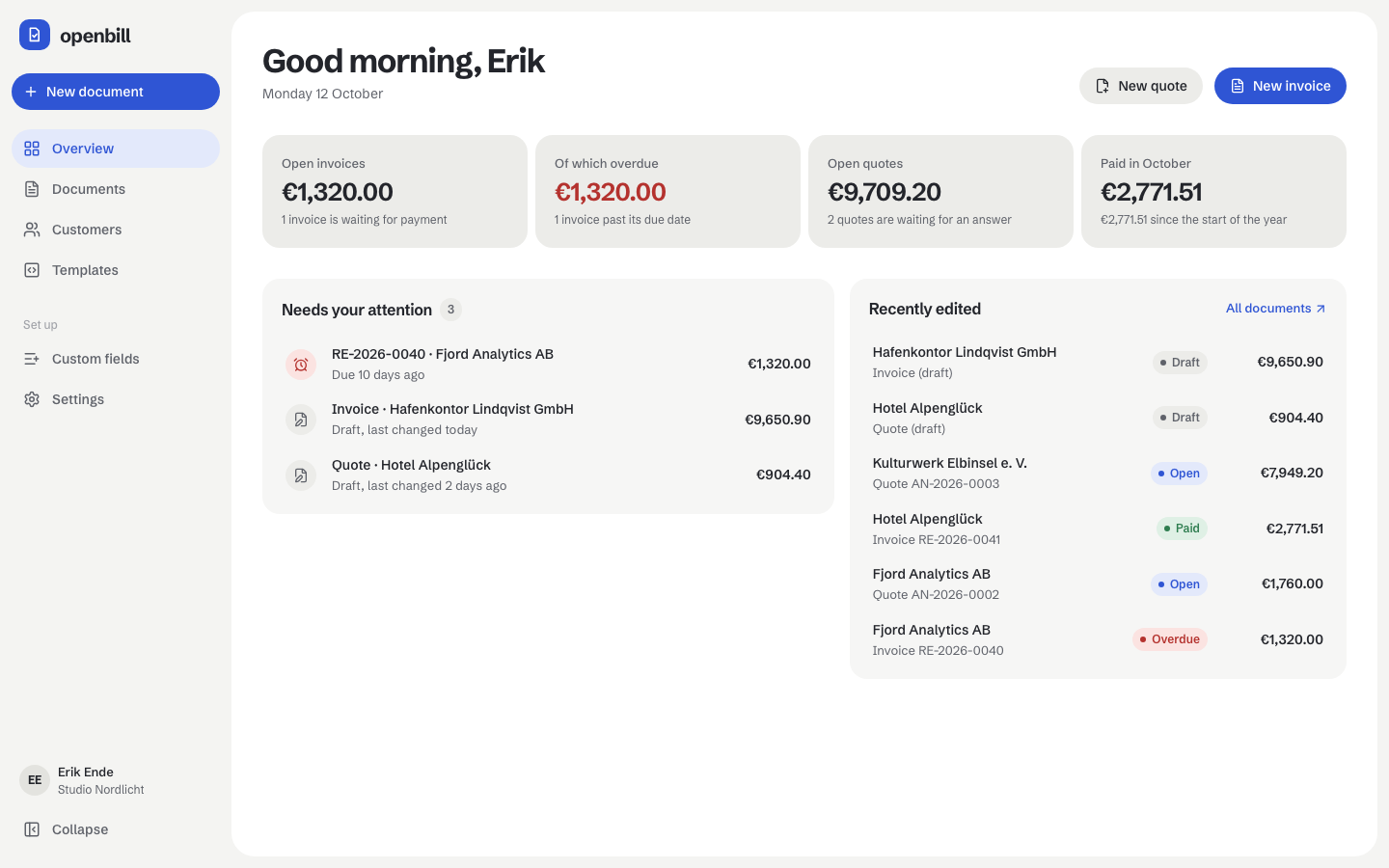
After logging in you land on the overview. Four figures sum up the money side: open invoices, how much of that is overdue, open quotes, and what was paid this month (with the total since the start of the year). The figures of open invoices and quotes open the matching filtered list. Needs your attention lists overdue invoices first, then open quotes whose validity ends within seven days or has ended, then drafts. Recently edited shows the six documents changed last.
Document list
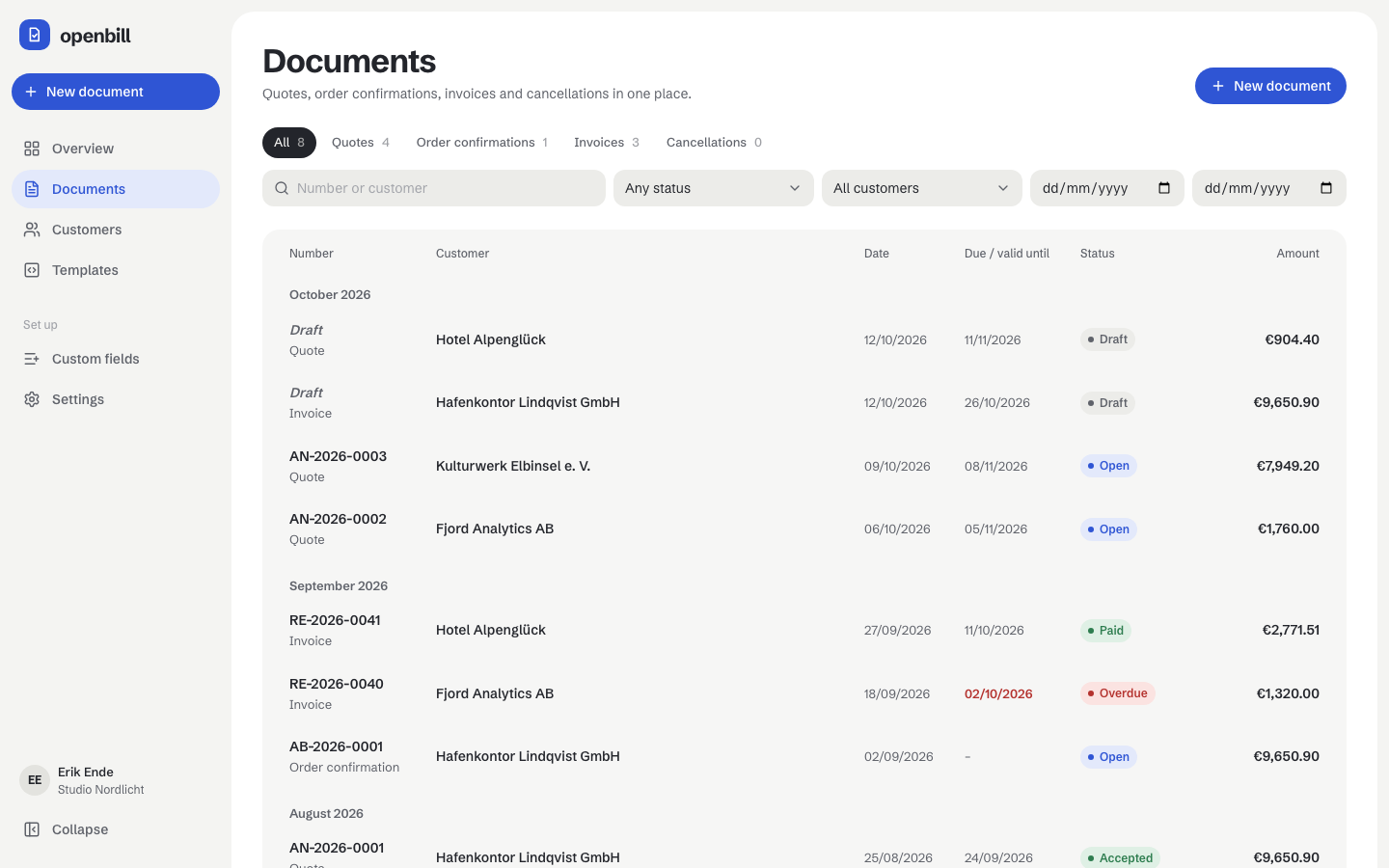
Documents shows all documents, newest first and grouped by month. Filter by type (each pill shows how many documents that type has under the other filters), by status, by customer and by document date (from/to), and search number and customer name. The status filter also offers Overdue: open invoices past their due date. Every filter is part of the address, for example /en/documents?type=invoice&status=overdue or /en/documents?date_from=2026-01-01&date_to=2026-03-31, so a filtered list can be bookmarked, shared and reached again with the browser's back button. The list loads 50 documents at a time (Load more); the line below it counts all matching documents and sums their gross amounts.
New document
New document in the sidebar – or the key N anywhere, as long as you are not typing in a field – opens a dialog: choose the type and the customer (or choose the customer later), and openbill creates a draft with the defaults of the document type. Cancellations are not created here; they always come from an invoice. The new draft opens in the document editor.
Document editor
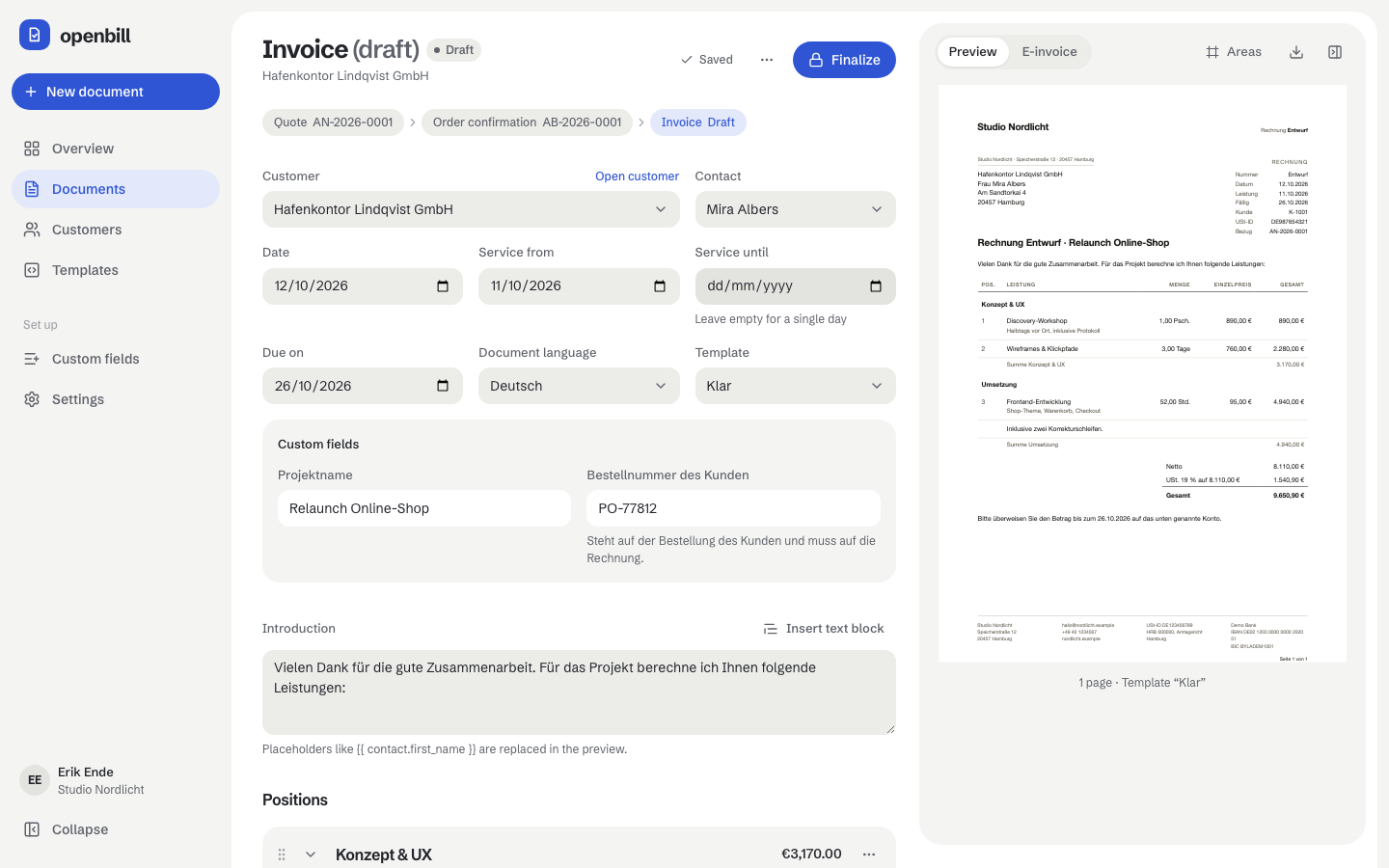
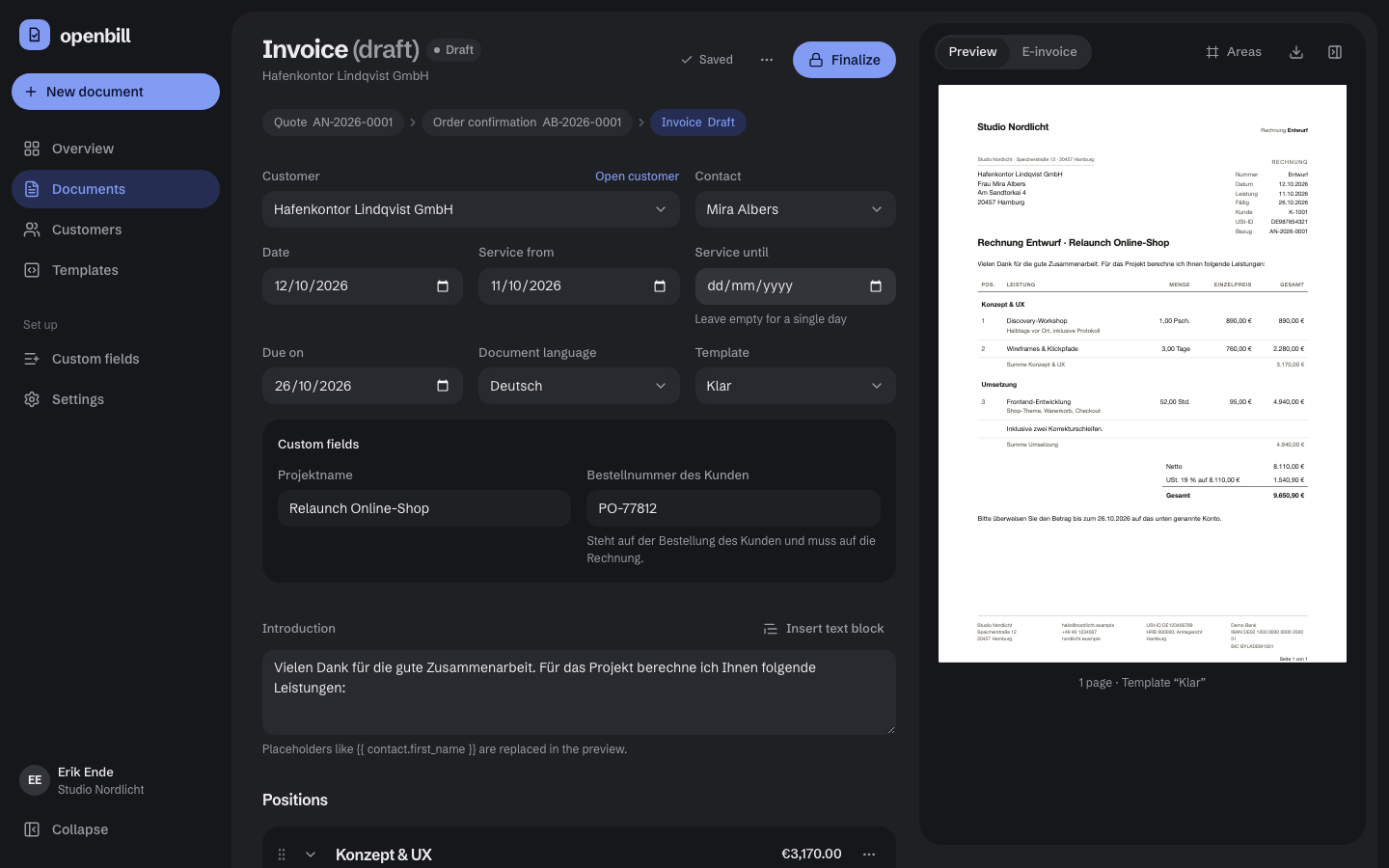
Every document opens in the editor: the form on the left, a live preview on the right (below the form on narrow screens). The preview shows the pages exactly as the PDF will look – openbill renders header, content and footer on the server with the document's template and only splits them into pages in the browser. Areas outlines header, content and footer on every page. The preview can be hidden and shown again; the choice is remembered in this browser.
- Header fields: customer, contact (the customer's default contact is preselected), date, valid until (quotes), service period (invoices and cancellations), due date (invoices), document language and template, plus the document's custom fields. A cancellation always keeps the customer of its invoice.
- Positions: organize positions in groups, each with its subtotal. Drag groups and positions by their handle – also with the keyboard: focus the handle, press Space, move with the arrow keys, press Space again. A position is a service, a text line or, in quotes, an optional service that is shown but not added to the total. While you type a title, openbill suggests positions from earlier documents with their price, unit and tax rate. Numbers can be typed with a comma or a dot (
12,5or12.5); invalid input is marked and not saved. Removing a group or a position can be undone from the message that appears. - Texts: introduction and closing text, typed or inserted from text blocks.
- Totals and check: net, VAT per rate, total, optional positions and legal notes come from the server, as do the line and group totals. The check panel lists what the document's compliance profile still requires; click an entry to jump to the field. Entries about the customer link to the customer; entries about your organization open the organization settings at the right field.
- Saving: changes are saved automatically shortly after you stop typing; the header shows Unsaved, Saving … and Saved. Leaving the page or closing the tab saves first. Logging out saves too and sends deletions still waiting for their undo message, waiting at most three seconds for both; a message says that you are being logged out. If your session had ended already, logging out simply takes you to the login. If logging out fails (for example without a connection, or without an answer within ten seconds), you stay signed in, editing and saving go on, and a message says so. If saving fails because of the connection, openbill tries again on its own (or right away with Try again); invalid input is marked at its field. If the document was finalized or deleted elsewhere in the meantime (another tab, the API or MCP), the editor stops saving and says so. Two people editing the same draft at the same time overwrite each other's changes – the last save wins. If your session has expired, openbill keeps the changes since the last save in this tab and sends you to the login; open the document again after logging in (as the same person, within a day) and they are back and get saved. If the draft was changed in the meantime (for example over the API), the newer state stays and a message says that your changes were not restored. Known limits: if the tab is closed while a save is still on its way, in rare cases the older save can arrive last; very large drafts (several hundred positions) cannot be sent at all while the tab closes.
- Actions: Finalize asks for confirmation and names the number the document will get; with missing required details it jumps to the first one instead. Finalized documents are read-only. Depending on the status you can change it (for example Mark as accepted, Mark as paid), convert a document along the chain, cancel an invoice, duplicate a document, download the PDF (drafts with a watermark) and delete a draft – with Undo while the message is visible.
- Chain and e-invoice: above the form, the chain links the quote, order confirmation, invoice and cancellation that belong together. With the e-invoice profile, the tab E-invoice shows the XML of a finalized invoice or cancellation (copy or download); for drafts it explains that the XML is created when finalizing.
Customers
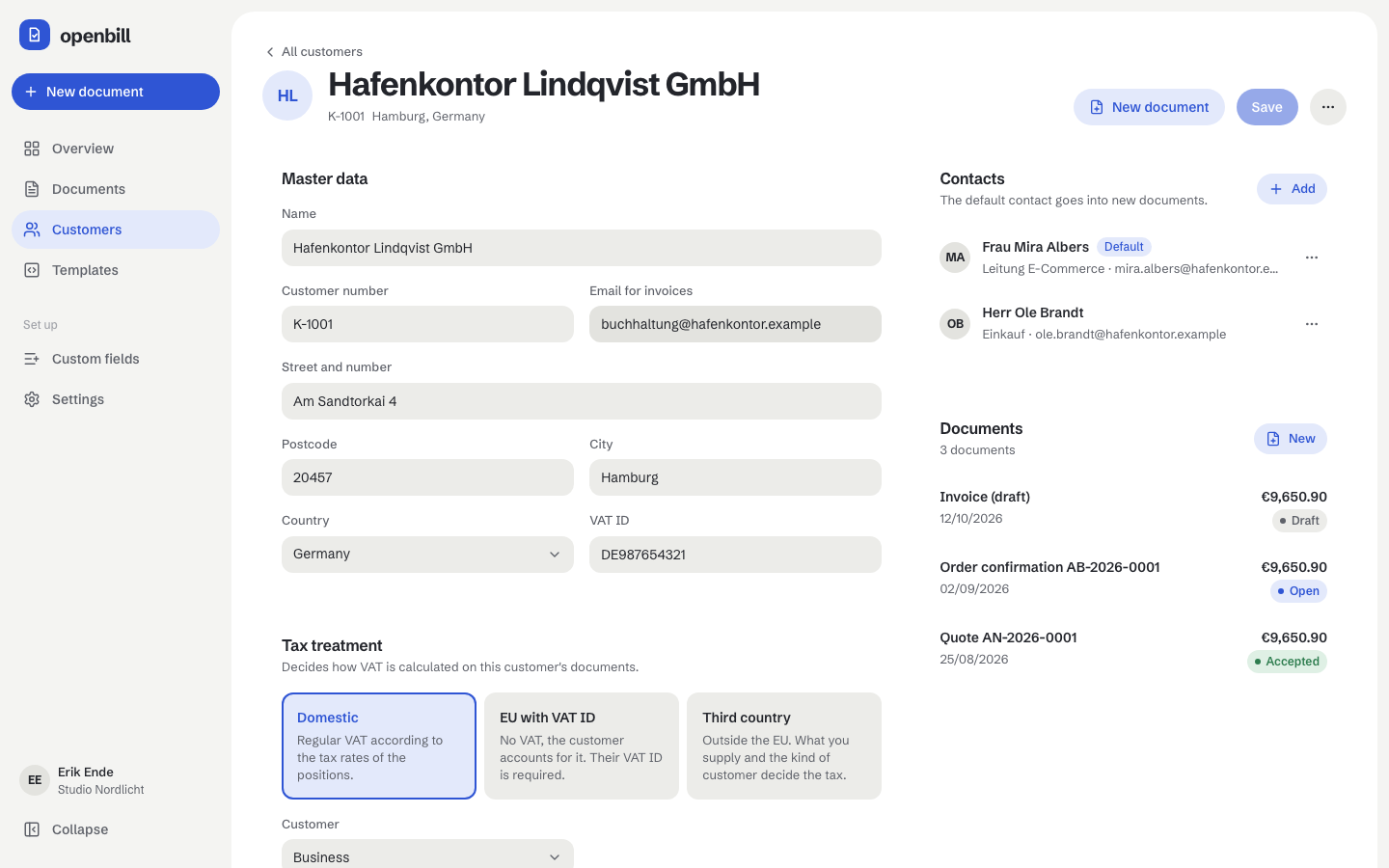
Customers lists all customers with their default contact and what is open: the sum of their open invoices, overdue ones marked. The search looks through name, number and email.
A customer's page holds the master data, the tax treatment (domestic; EU with VAT ID, which means reverse charge; third country), the Customer kind (business or private person), for customers outside the EU What you supply, the customer's custom fields, the contacts and the customer's documents. Contacts are edited in a side panel; one of them is the default that new documents use. All changes, contacts included, are saved together with Save:
- Mistakes are shown at the field they belong to (or at the contact), and nothing is saved until everything is valid.
- Leading and trailing spaces are removed; an empty customer number gets the next number of the customer number range (Settings).
- Leaving the page with unsaved changes asks first.
- A customer with finalized documents cannot be deleted.
Customer says whether the customer is a business (default) or a private person. For customers outside the EU, What you supply and Customer decide the tax: services to businesses are not taxable in Germany (category O), services to private persons keep the regular rate, goods are tax-free exports (G). Existing third-country customers were set to goods when the option was introduced, so their drafts keep the previous treatment.
Templates, custom fields and settings
Templates, custom fields and settings have their own pages: see Templates, Custom fields and Settings.
Appearance and language
The account menu at the bottom of the sidebar switches between light, dark and the system setting (remembered per browser) and between English and German. The sidebar can be collapsed to icons; on small screens it opens from the menu button.
Demo data
For development and trying things out:
ddev artisan db:seed --class=DemoSeederThis replaces all business data (documents, customers, custom fields, tax rates, units, text blocks, templates, number ranges) with the fictional company Studio Nordlicht and its customers. User accounts stay.